This guide is written for the absolute beginner. We will walk through every major generation from the beginning to today (late 2025/2026), explain exactly what changed, what went wrong, and help you confidently decide which MacBook deserves your money.
🛒 Part 6: The Ultimate MacBook Inspection Guide
(Don't Pay Until You Pass All 5 Phases)
Buying a used or new MacBook in is a smart move, but the market is full of hidden traps. Don't let the shop pressure you. Follow this step-by-step guide to ensure you aren't buying a "lemon" or a stolen machine.
Phase 1: The "Identity Card" (Basic Specs)
First, confirm the laptop matches the advertisement. Sellers often lie about the year or model.
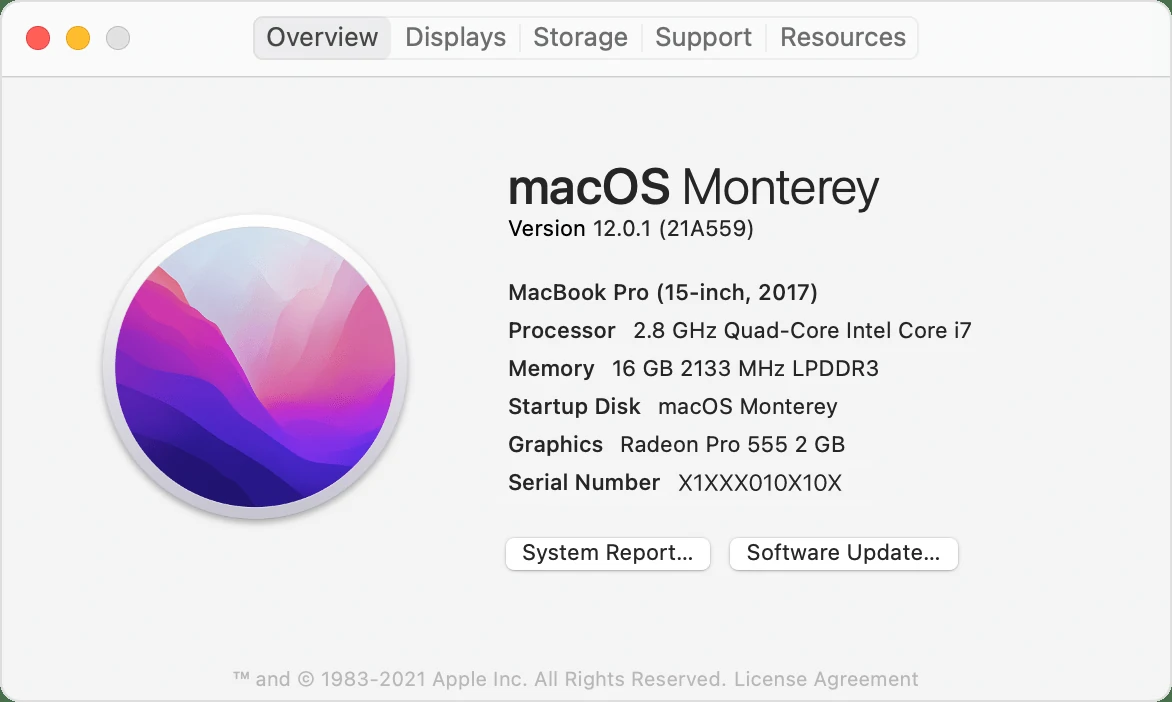
1. Processor (Intel vs. M1) & Memory (RAM)
Go to: Click Apple Logo > About This Mac.
- Chip: If it says "Apple M1" (or M2/M3), it is the modern era (2020+).
- Processor: If it says "Intel Core i5/i7", it is the older era.
- Memory: 8GB is the minimum. 16GB is ideal.
- Startup Disk: This confirms the name of your main drive (usually "Macintosh HD").
2. The Generation & Year
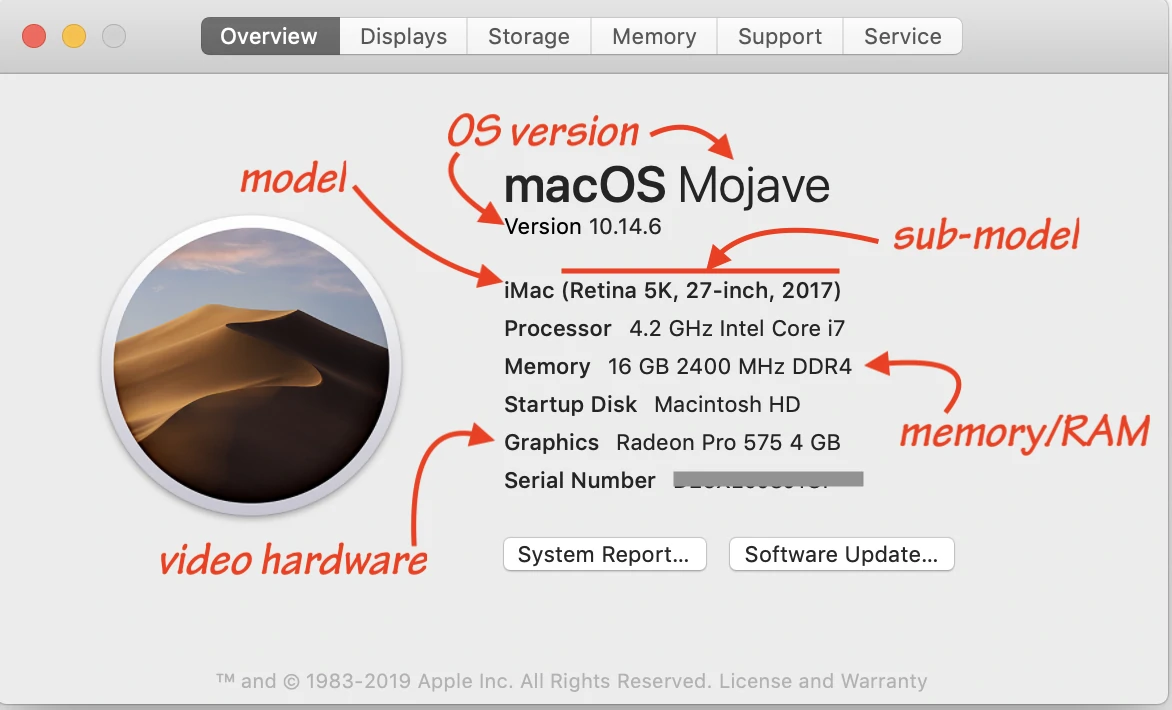
Go to: Click Apple Logo > About This Mac.
Look for: The text in small print, e.g., "MacBook Pro (13-inch, 2017, Two Thunderbolt 3 ports)".
Why it matters: This confirms the exact year. Sellers often lie and call a 2016 model a "2017" because they look identical. The text here doesn't lie.
3. Storage Size (Real vs. Fake)
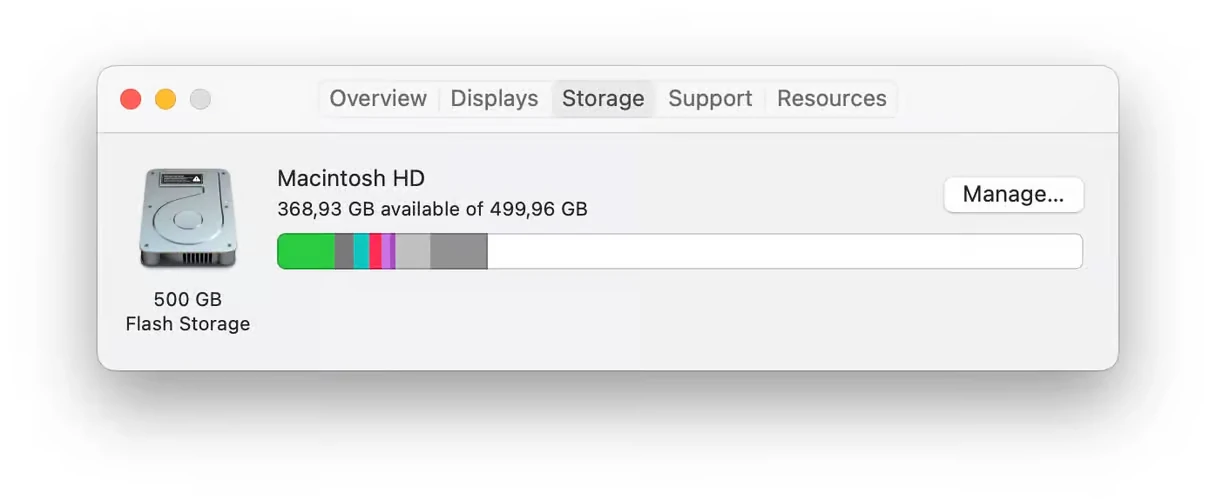
Go to: Click Apple Logo > About This Mac > Click "More Info" (on new macOS) or the "Storage" Tab (on old macOS).
Look for: A bar graph showing "XX GB available of XX GB".
⚠️ Crucial Note: If a seller says "500GB" but you see "499GB Flash Storage," that is real. If you see "1TB SATA Disk," that is a slow, old mechanical hard drive (avoid these).
Phase 2: The "Silent Killer" Check (Security) 🚨
This is the most critical phase. If the laptop fails here, it is a useless brick. STOP immediately.
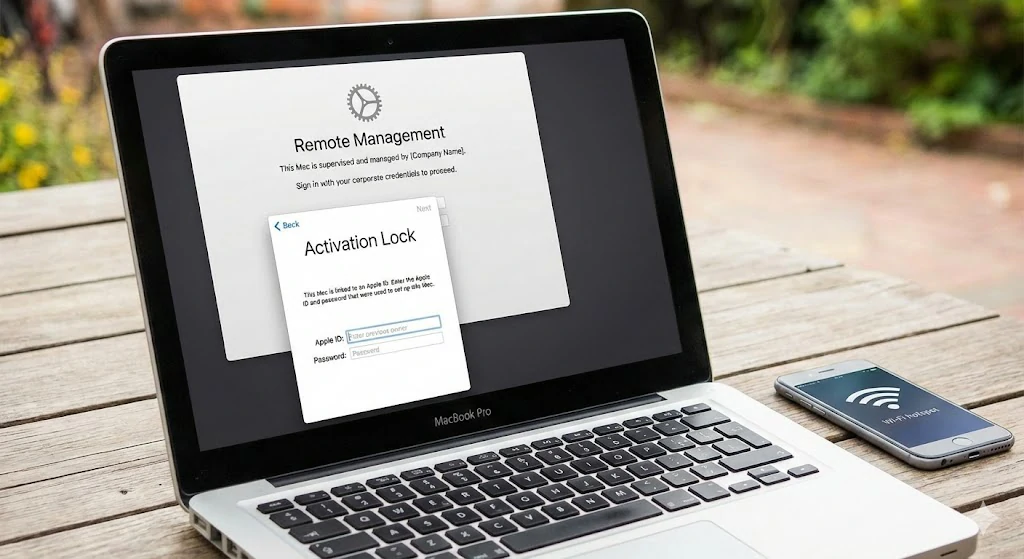
4. iCloud & MDM Locks (The Reset Test)
Why: Some laptops are stolen or belong to companies (Remote Management). They might work fine offline, but the moment you connect to Wi-Fi, they lock themselves.
How to Test:
- Tell the seller to Factory Reset the Mac (Erase All Content).
- Turn it on. You should see the "Hello" screen.
- Crucial Step: Connect to a Wi-Fi network (use your phone hotspot).
- Try to complete the setup.
The Verdict:
- ✅ Pass: If it lets you get to the Desktop or asks for your Apple ID.
- ❌ Fail: If it says "Remote Management" or asks for a corporate login (e.g., "Property of Acme Corp"). DO NOT BUY IT.
- ❌ Fail: If it asks for the previous owner's Apple ID password (Activation Lock). Walk away.
Phase 3: The "Physical Exam" (Hardware)
Now that you know it's safe, check if the physical parts are broken.
5. The Flashlight Test (Screens)
Why: Older MacBooks (especially 2012–2015) suffer from "Staingate," where the anti-reflective coating peels off.
How: Turn the screen OFF. Shine your phone’s flashlight directly at the black glass.
Look for: Ugly, oil-slick patches or peeling edges. If you see them, the screen will look terrible in sunlight.
6. The "Mushy" Key Test (Keyboard)
Why: To catch sticky keys or the dreaded "Butterfly" keyboard failure (common on 2016–2019 models).
How: Open the "Notes" app. Type every single key on the keyboard.
- Do they all click loudly and snap back up?
- Does the Spacebar feel stuck at the edges?
- Does the "E" or "S" key type twice when you press it once?
7. The Bass Test (Speakers)
Why: The glue in MacBook speakers degrades over time, causing them to "blow out."
How: Open YouTube and play a song with heavy bass (like Afrobeats or Hip Hop) at Maximum Volume.
Verdict: If you hear a rattling, buzzing, or "farting" noise, the speakers are dead.
Phase 4: The "Internal Health" (Deep Dive)
Check the health of the internal organs (Battery, Drive, Graphics).
8. Disk Health (Is the SSD dying?)
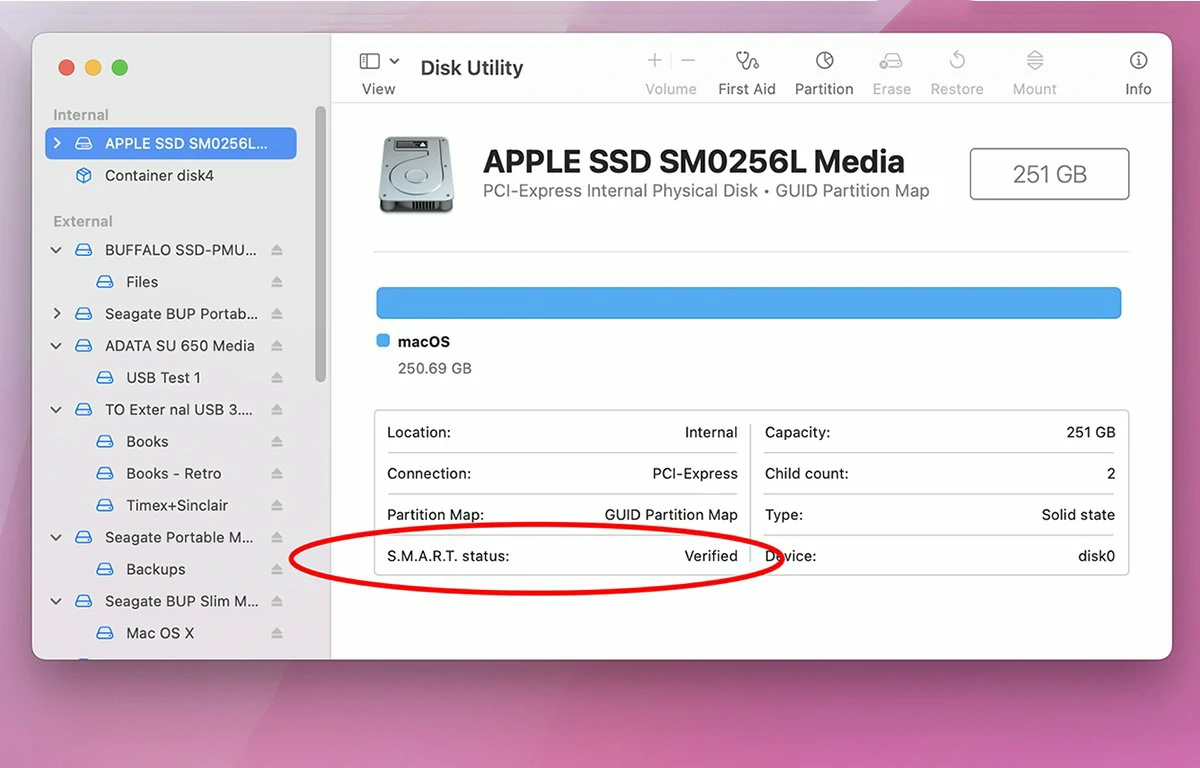
Go to: Applications > Utilities > Disk Utility.
Action: Click on the main drive (usually named "APPLE SSD..." or "Samsung...") on the left sidebar.
Look for: "S.M.A.R.T. Status" at the bottom of the window.
- ✅ Verified: The drive is healthy.
- ❌ Failing / Fatal: The drive is dead. DO NOT BUY.
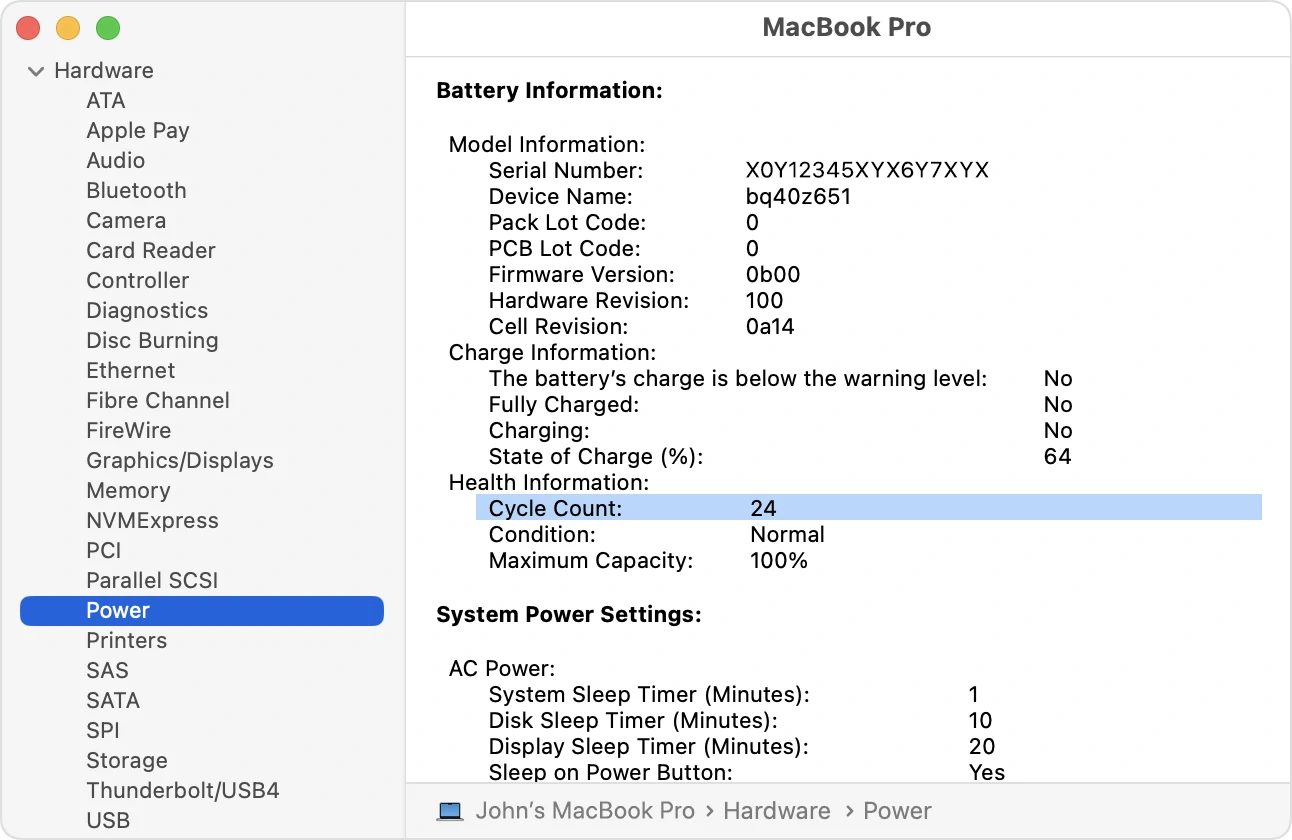
9. Battery Health (The Cycle Count)
Go to: Click Apple Logo > About This Mac > System Report (or System Information).
Navigate: Click Power on the left list.
Look for:
- Cycle Count: Under 500 is good. Under 50 is excellent.
- Condition: Must say "Normal". If it says "Service Recommended," the battery is dead. Demand a discount.
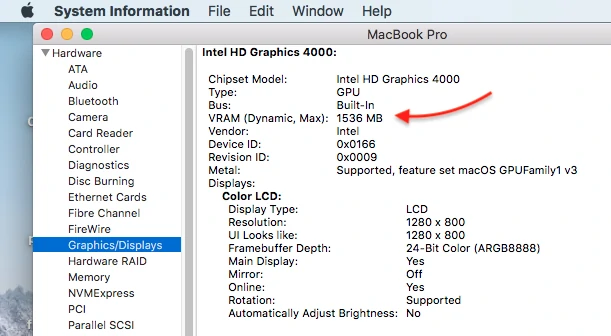
10. Graphics Card (For Video Editors)
Go to: Click Apple Logo > About This Mac > System Report > Graphics/Displays.
Check: Look for "Chipset Model."
- If you see Intel Iris/UHD Only: It is a weaker model.
- If you see AMD Radeon or NVIDIA: It is the powerful "Dual Graphics" model (better for editing).
Phase 5: The "Detective Work" (Pro Checks)
These are the advanced moves that prevent you from being scammed by hackers.
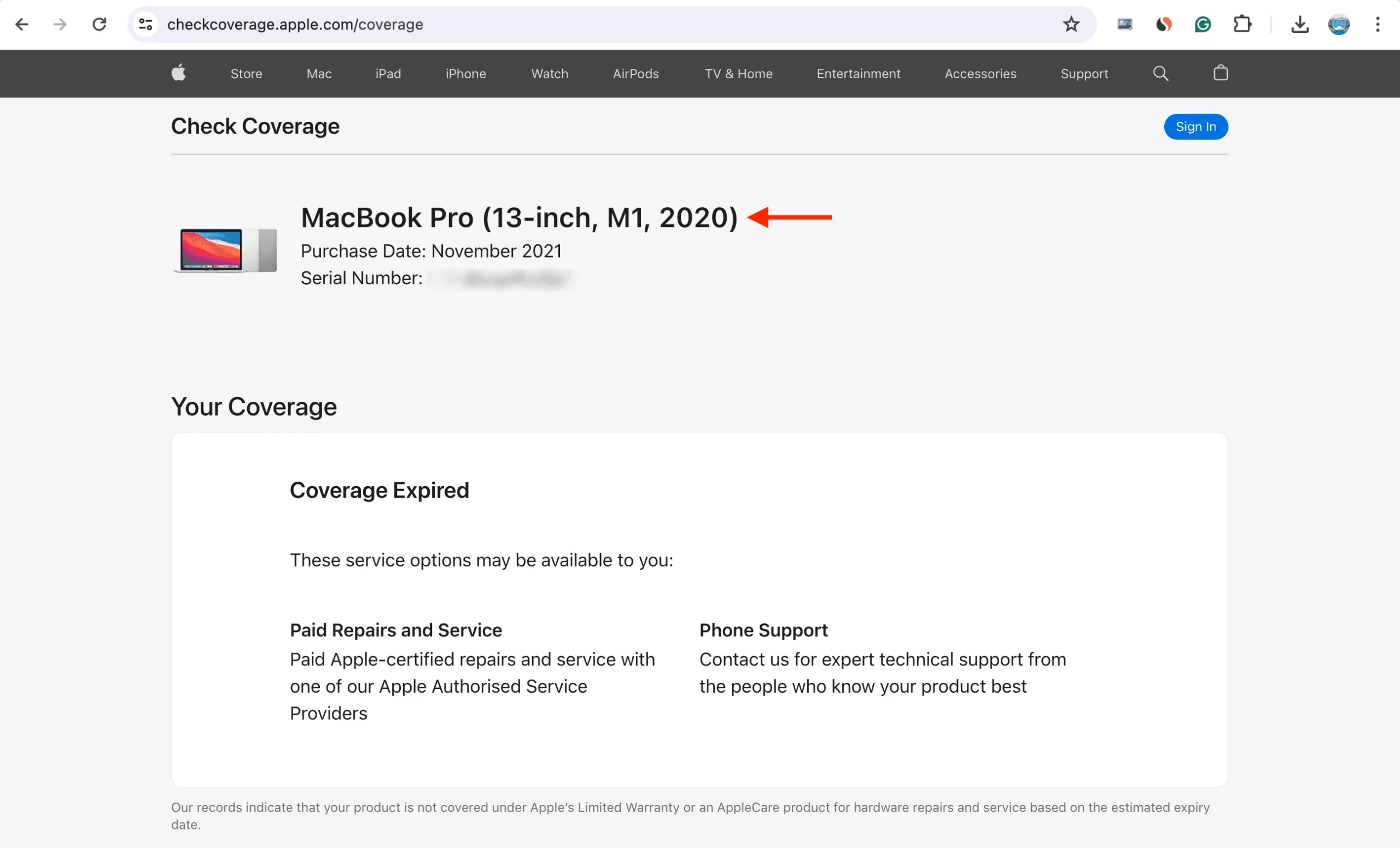
11. Verify the Serial Number (The "Stolen" Check)
Action: Copy the Serial Number from About This Mac.
Go to: checkcoverage.apple.com on your phone.
Result: Apple's official database will tell you the real purchase date and model year. If the laptop says "2019" but the website says "2016," the seller hacked the software to scam you.
12. The "Firmware Password" Lock
Test: Turn the MacBook completely OFF.
Action: Turn it on and immediately hold down the Option (Alt) key.
- ✅ Good: You see a list of hard drives to boot from.
- ❌ Bad: You see a Padlock Icon with a password field. This means the firmware is locked. Walk away.

13. The Microphones (The "Zoom" Test)
Go to: System Settings > Sound > Input.
Action: Clap your hands or speak. The "Input Level" bar should jump/move. If the bar stays flat, the microphone cable is cut.
Pro Tip:
Screenshot this list and keep it on your phone when you visit the shop!