Learn how to put every guest's name on your digital invitation cards using Microsoft Word Mail Merge, then save each card as its own image named after the guest, ready to send on WhatsApp in minutes.
Sending digital invitation cards on WhatsApp has become the norm for weddings, introductions, church events, graduations and birthdays. But when you have hundreds of guests, two problems show up fast: typing each guest's name on a card, and then finding the right card for each person when it is time to send.
Many people already know how to add names with Mail Merge. The difference in this guide is what happens next: every card is saved as its own image file, named after the guest. So instead of files called "Cards page 0001", you get Albert.jpg, Ann.jpg and John.jpg, ready to send without opening a single file.
Watch the full video tutorial here:
What You Need
Before you start, have these ready:
- Your designed card saved as a JPG or PNG image
- Microsoft Word and Excel
- Your guest list in Excel. Put a header like "Name" in the first cell, then the names below it. Do not start the names directly in cell A1.
- The free Rename Template (download link in the video description)
Step 1: Insert Your Card in Microsoft Word
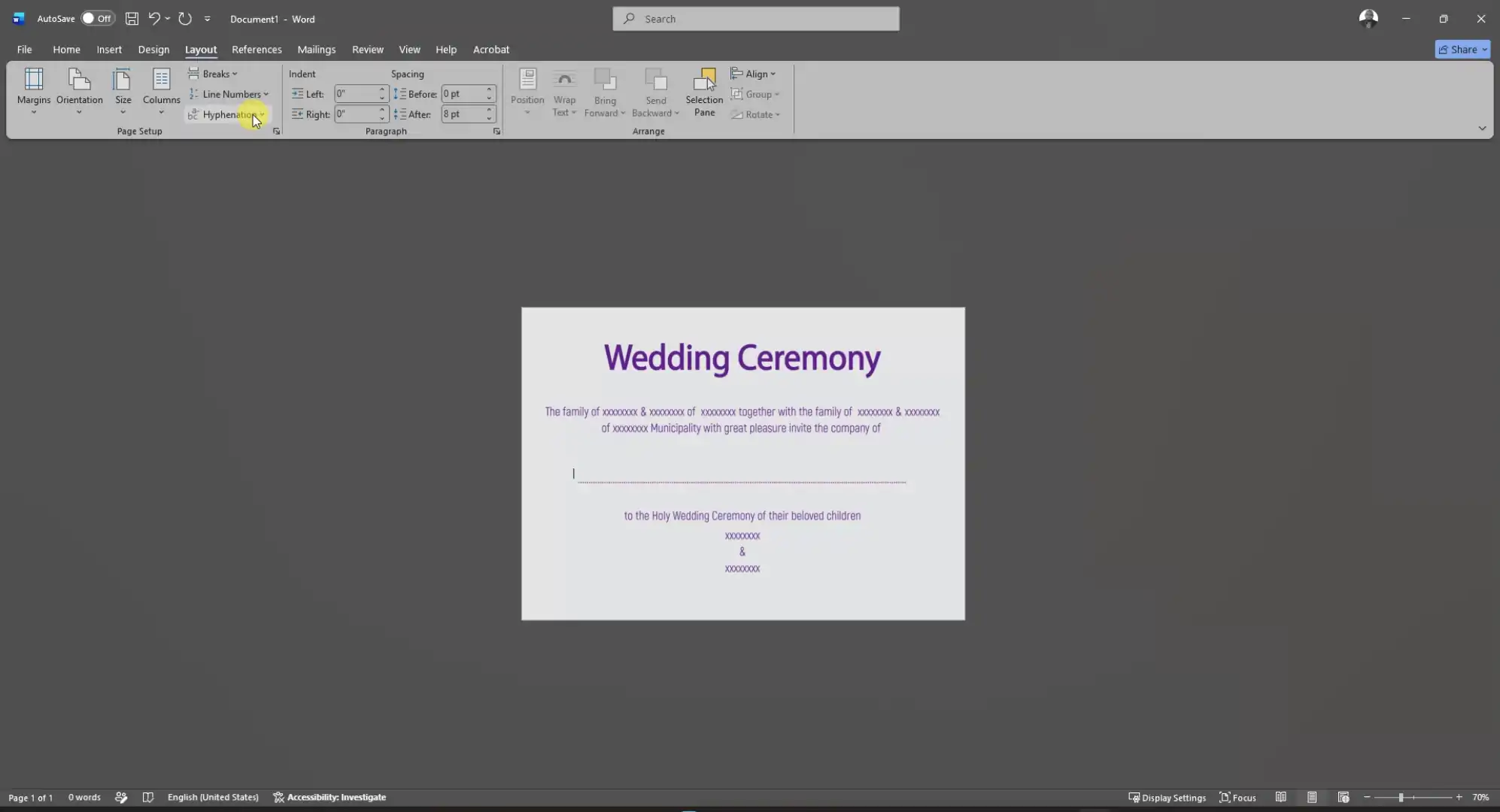
Open a blank Word document and go to Insert > Pictures to add your card design.
To move the card freely, click the image, go to Picture Format > Wrap Text and choose Behind Text. This lets you type on top of the card. Resize it to fill the page.
Next, match the page to your card size. Go to Layout > Size > More Paper Sizes and adjust the width and height so the card fits well. In the video, a height of 6 inches worked for the design used.
Finally, place your cursor exactly where the guest's name should appear on the card.
Step 2: Connect Your Guest List with Mail Merge
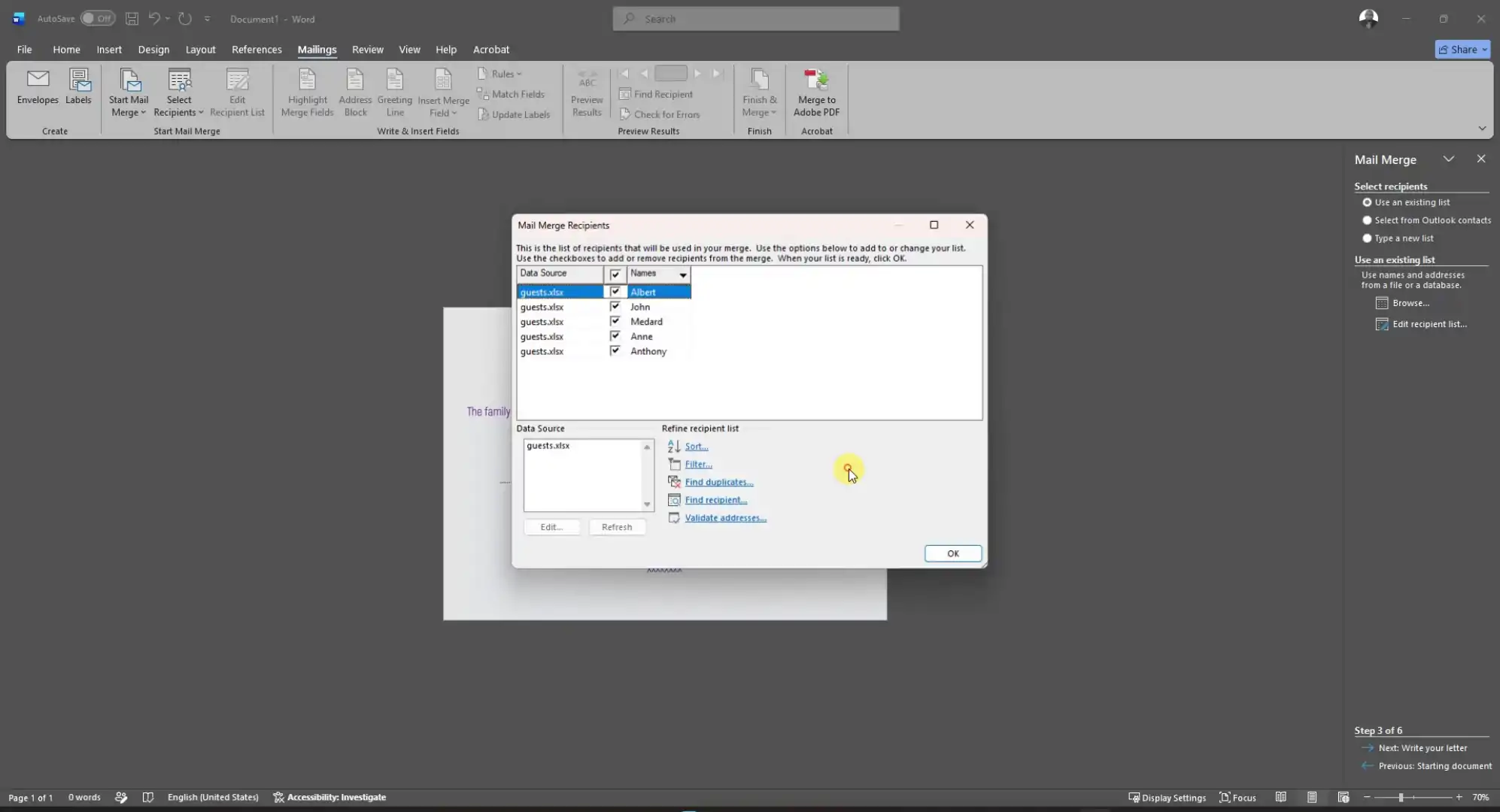
Go to Mailings > Start Mail Merge > Step by Step Mail Merge Wizard.
- Choose Letters, then click Next: Starting document
- Select Use the current document, then Next: Select recipients
- Choose Use an existing list, click Browse, and open your Excel guest list
- Click OK. All your guest names will appear in the list
Step 3: Add the Name Field to Your Card
Click Next: Write your letter, then More items. Select the Name field and click Insert.
The name placeholder now sits on your card. Style it to match your design: change the font, size and colour just as you would with normal text.
Step 4: Merge All Cards and Save as PDF
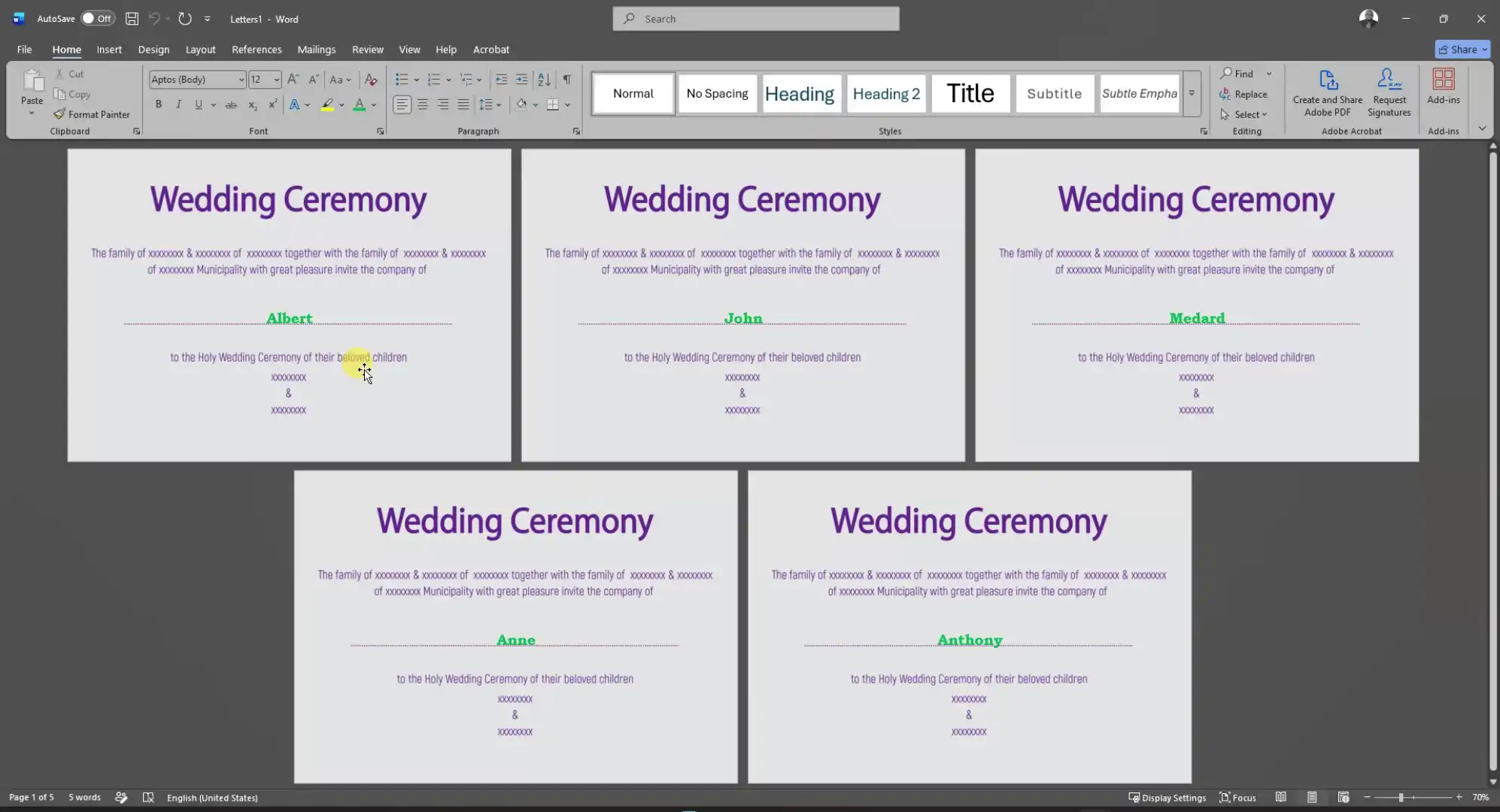
Click Next: Preview your letters to check how the names look. Then go to the last step and click Edit individual letters > All > OK.
Word creates a new document with one card per guest. Save it as a PDF, for example "Cards.pdf".
Step 5: Convert the PDF to JPG Images
Your cards need to be images for easy sharing. Use any PDF to image converter. In the video, iLovePDF is used:
- Go to All PDF Tools > PDF to JPG
- Upload your Cards PDF
- Choose High quality for sharp images
- Convert and download
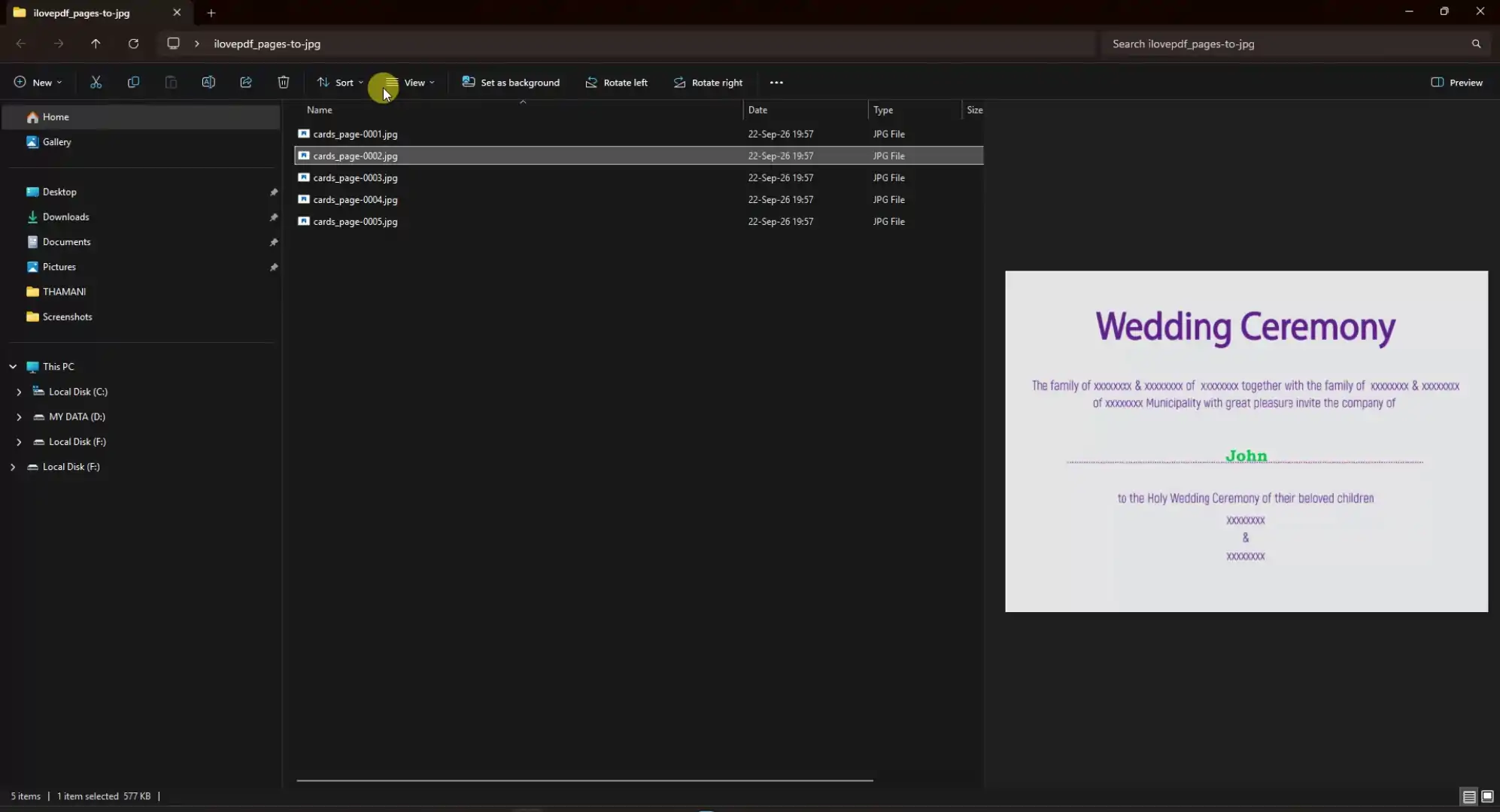
The images download as a zipped folder. Extract them with WinRAR or any unzip tool.
When you open the folder, the files have generic names like "Cards page 0001". Now imagine renaming 1000 of these one by one. This is where the magic happens.
Step 6: List Your File Names Using CMD
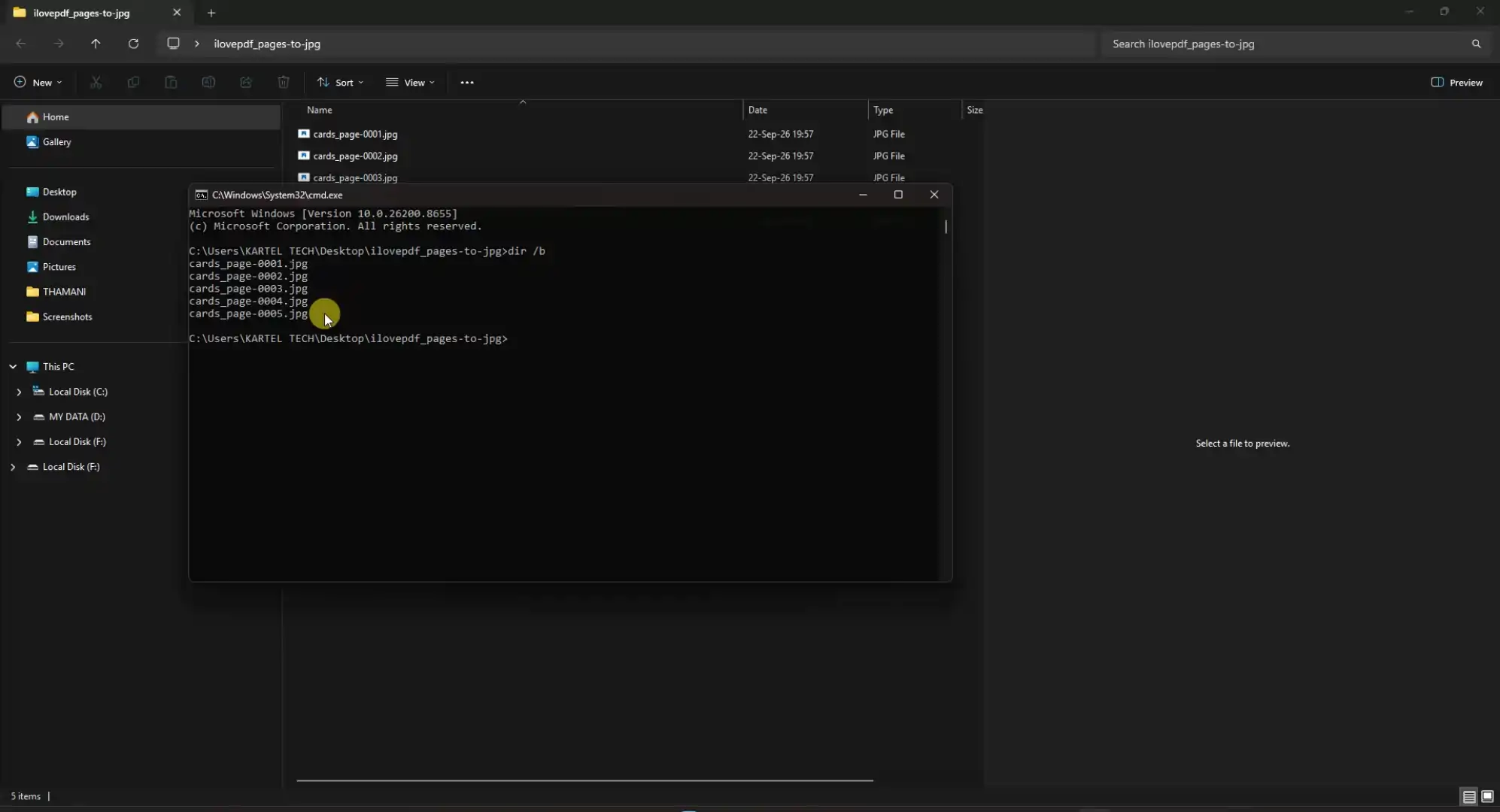
Inside the folder with your images, click the address bar at the top, type cmd and press Enter. Command Prompt opens directly in that folder.
Type this command and press Enter:
dir /bThis lists every file name in the folder. Select the list and copy it with Ctrl + C. Keep the Command Prompt window open; you will use it again.
Step 7: Prepare the Rename Template
Open the Rename Template in Excel.
- Paste the copied file names into the Old File Names column
- Copy your guest names and paste them into the Name column on Sheet 1. The template uses a CONCATENATE formula to add the .jpg extension to each name automatically
- Copy the names with extensions back into the New File Names column
Tip: When copying from formula cells, Excel may copy the formulas instead of the names. Use Paste Special > Values (or paste into a blank Word document first and copy again) so only the plain text goes across.
The template then builds a rename command for every card, like this:
ren "old file name.jpg" "Albert.jpg"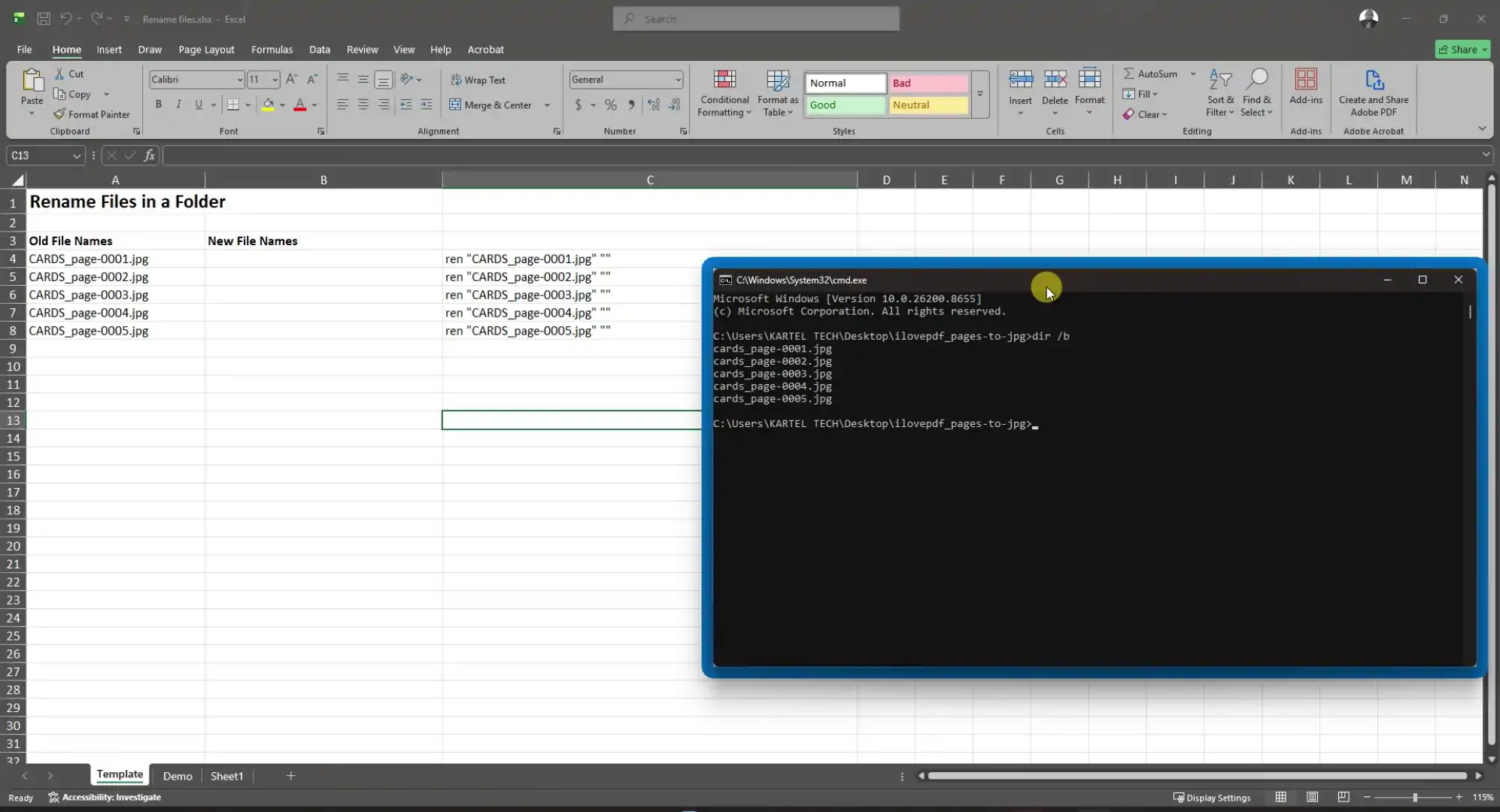
Step 8: Rename All Cards at Once
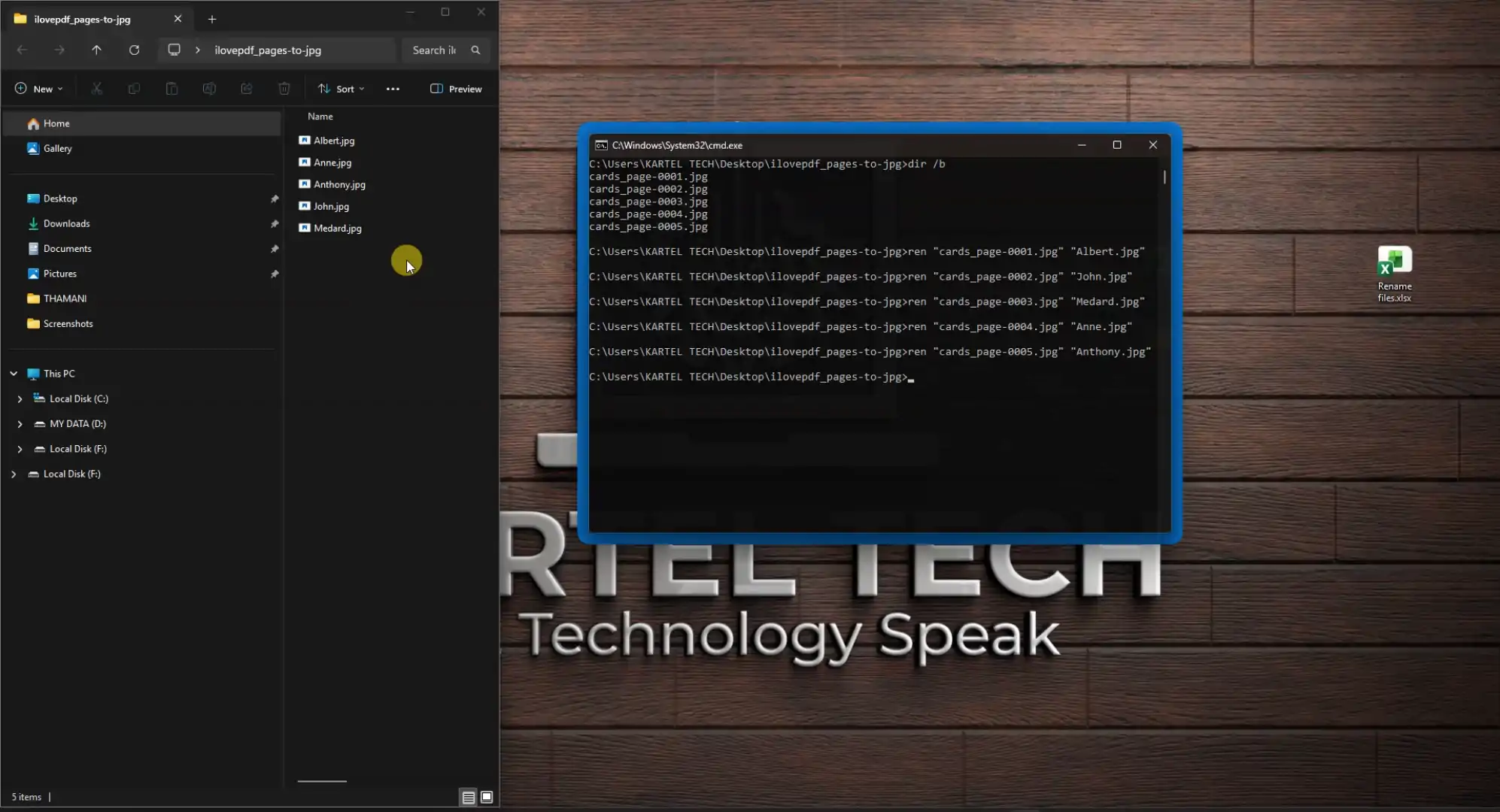
Copy the full column of rename commands from the template. Go back to your Command Prompt window, right click to paste, and press Enter.
In seconds, every card is renamed to its guest: Albert, Ann, Anthony, John, Medard. Whether you have 5 cards or 1000, it takes the same few seconds.
Common Mistakes and How to Fix Them
- Names do not appear in Mail Merge: Make sure your Excel list has a header in the first row.
- Wrong name on the wrong card: The order of files and names must match. Check that your file list and guest list are in the same order before running the commands.
- Rename fails for some cards: Two guests with the same name will clash. Add a number, such as "John 2".
- Extension mismatch: If your images end in .jpeg instead of .jpg, update the template so the extensions match exactly.
- Names with special characters: Characters like / \ : * ? " < > | are not allowed in Windows file names. Remove them from the guest list.
Frequently Asked Questions
Can I use this for other cards apart from invitations?
Yes. It works for certificates, event passes, name tags, thank you cards and any social media card that needs a name on it.
Does this work on Mac?
Mail Merge works in Word for Mac, but the CMD rename steps are for Windows. Mac users can rename files using Terminal with a similar approach.
How many cards can I create at once?
As many as your guest list holds. The steps are the same for 10 cards or 1000.
Can I send the cards on WhatsApp directly?
Yes. Since each image carries the guest's name, you simply search the folder for the name and send it.
Conclusion
Creating digital invitation cards for a big event no longer has to take days. With Word Mail Merge, a PDF to JPG converter and a few Command Prompt commands, you can produce 1000 personalised cards, each saved with the guest's name, in just minutes.
Watch the full step by step video on our YouTube channel and subscribe for more practical tech tips.
Need your event cards done for you? Kartel Tech designs and personalises digital invitation cards for weddings, churches, schools and corporate events.
📍 Level 1, Room B26, Portville Mall, Mbarara City
📞 0709 721 706 / 0705 840 594
✉ contact@karteltech.net
🌐 karteltech.net
Kartel Tech: Let Technology Speak.